Friday, 7 June 2013

How to Compress VIdeo Without losing Original Quality With Handbrake


How to compress video with handbrake without losing quality

  • I am going to show how to compress video so first Install Microsoft Net Framework 
  • Then install Xvid Codec
  • After that install the HandBrake in your system
  • Open handbrake software
  • Now follow mine instructions that how i am make settings for compress video
  • Click on Picture Tab
  • Ok now change the setting in Anamorphic Tab by click on Drop Down Menu
  • Now Leave the Filter Tab
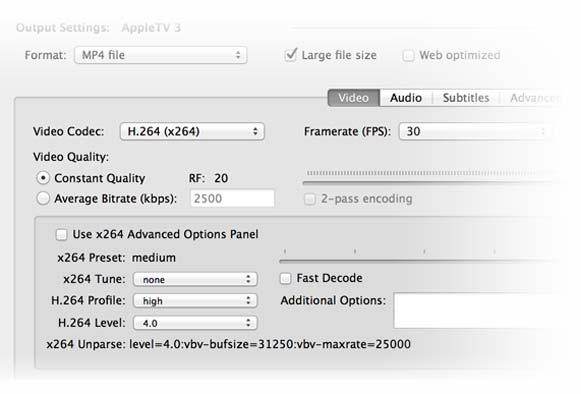
  • Click on Video Tab
  • Now check the Constant Framerate box and set the video quality 25 or 30. because this is better quality
  • Leave same settings for AUDIO
  • Keep original settings for subtitles
  • Also keep the original settings for Chapters and Advanced Tabs

  • Before saving video give the save location by click in box which you are seen behind the browse button
  • Then click on start and wait for some time
  • Enjoy my unique tutorial and follow me on facebook,twitter and google +
Read More ->>

How To Capturing Video With VLC Player


Capturing Desktop Video/Work With VLC Player

  • Follw me how to make settings in vlc for capturing video
  • Open VLC player and click on File Menu then select Conver/Save.
  •  After click on that option a window will be open 
  • Click on Capture Device Tab and then click on below drop down menu and select Desktop
  • Set the "Desired frame rate for the capture" 7.00f/s 
  • After that click on bottom area where you can see the drop down menu "convert/save" and select Convert
  • A window will be apeared like this
  • Ok now give the destination to your save file. click on browse and give the name with video extension or format like as i give the name myvideo and file format/extension is .avi then click on save
  • After click Save window will be appeared like this one
  • Click on start button and your video will be start.
  • Enjoy my unique tutorial and follow me on facebook,twitter and google +
Read More ->>

Tuesday, 4 June 2013

HandBrake 0.9.9 Video Transcoder Free Download Full Version


Best Video Compression Softwares


Built-in Device Presets

Get started with HandBrake in seconds by choosing a profile optimised for your device, or choose a universal profile for standard or high quality conversions. Simple, easy, fast. For those that want more choice, tweak many basic and advanced options to improve your encodes. 

Supported Input Sources

Handbrake can process most common multimedia files and any DVD or BluRay sources that do not contain any kind of copy protection.

Outputs

File Containers: .MP4(.M4V) and .MKV Video Encoders: H.264(x264), MPEG-4 and MPEG-2 (libav), and Theora(libtheora) Audio Encoders: AAC, CoreAudio AAC/HE-AAC (OS X Only), MP3, Flac, AC3, or Vorbis Audio Pass-thru: AC-3, DTS, DTS-HD, AAC and MP3 tracks 


Even More Features In HandBrake

  • Title / Chapter selection
  • Queue up multiple encodes
  • Chapter Markers
  • Subtitles (VobSub, Closed Captions CEA-608, SSA, SRT)
  • Constant Quality or Average Bitrate Video Encoding
  • Support for VFR, CFR and VFR
  • Video Filters: Deinterlacing, Decomb, Detelecine, Deblock, Grayscale, Cropping and scaling
  • Live Video Preview


Requirements


Read More ->>

Sunday, 2 June 2013

How To Speaks Your PC Like a Man


How To Speak Your Own Computer

  • First open notepad
  • Type the below code in notepad and save as pcspeaks.vbs
  • Then open the file "pcspeaks.vbs" from where you save
  • Type your desire text and click Ok
  • Enjoy
Code Here

Dim msg, sapi
msg=inputBox("Enter your text for conversion","iTzPaRaDizE.BlogSpot.CoM")
Set sapi=CreateObject("sapi.spvoice")
sapi.Speak msg
Read More ->>

Saturday, 1 June 2013

Chat Roll

If you have any problem in downloading or link please report me or leave your message in that chat roll i will solve your problem as well as soon possible. You can share your blog/site here with friends.


Read More ->>

E-Books

Read More ->>

How We Can Free Buddy Chat From Web


  • First you type in your write message P and send it to 8585 from Warid network
  • For Ufone network type in your write message P and send it to 835 from Ufone network
  • Ok you will be able to know about you buddy chat password
  • Now click on this link Link Here
  • Now type your number and give your password in below box
  • Click Log In
  • Only for Ufone And Warid users
  • Enjoy Your Chat
Read More ->>
Powered by Blogger.